How to Resize Images Online: Dimensions, Quality & Best Practices
"The image must be exactly 1200x630 pixels."
Every platform has its rules. twitter cards, open graph images, Instagram posts, email headers—they all demand specific dimensions. And if you upload the wrong size, they'll crop it awkwardly (usually cutting off someone's head). (See our Meta Tag Guide for more on OG images).
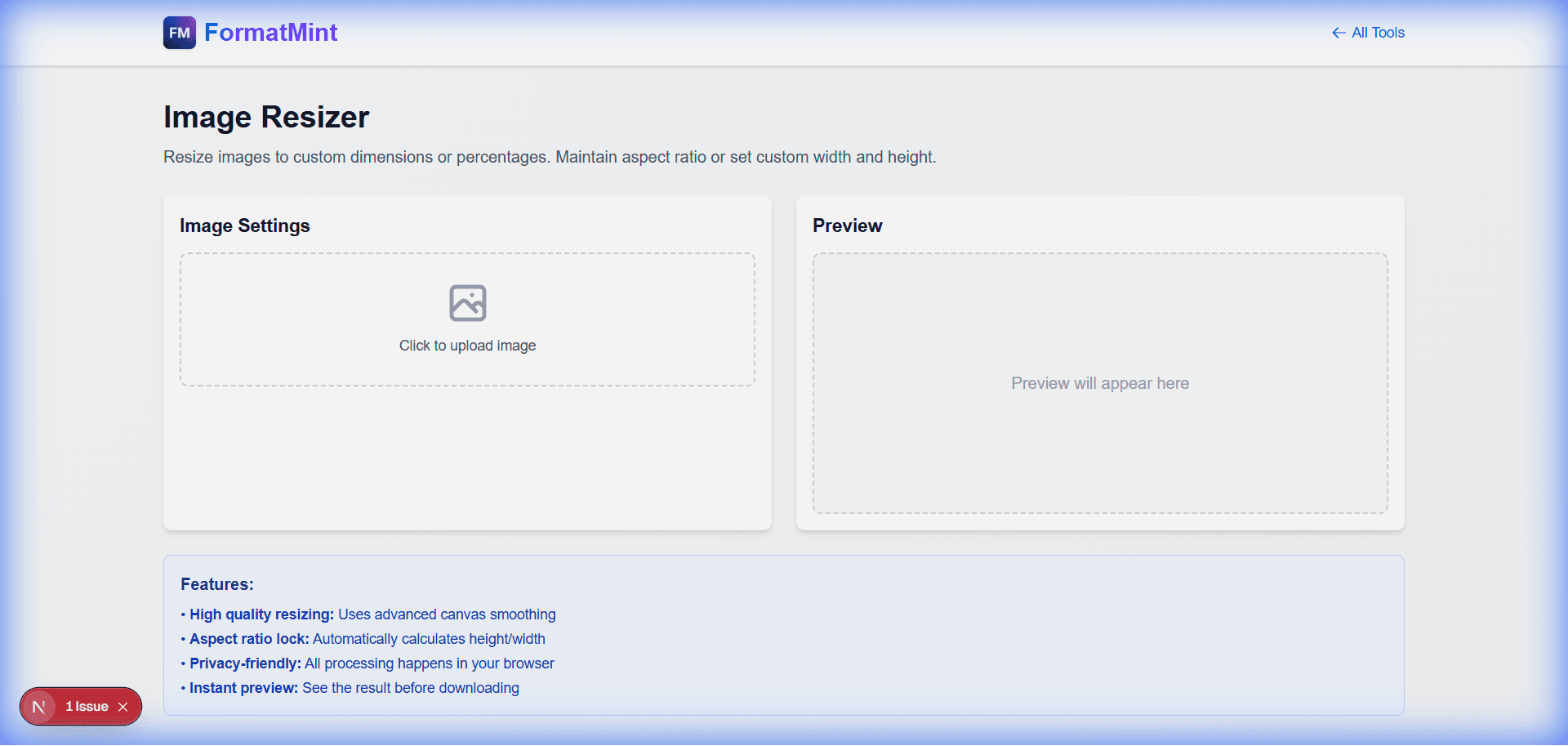
Our [Image Resizer](/tools/image-resizer) is the quickest way to fix this. No Photoshop, no heavy apps. Just upload, type the numbers, and download.
The "Aspect Ratio" Trap
The biggest mistake I see? Stretching.
You have a 1000x1000 square image, but you need a 1200x630 rectangle. If you just force those numbers, your image will look squashed.
How to do it right:
- Lock Aspect Ratio: Keep this checked to avoid distortion.
- Resize by Width: Set width to 1200. The height might become 1200 (too tall).
- Crop (if needed): If the aspect ratios don't match, resize to the smallest dimension that covers the area, then crop the excess. (Or use a tool like Canva for complex compositions).
For Web Developers: The "2x" Rule
If you're building a website, you've probably heard of Retina or High-DPI screens.
If you want an image to display at 400px width on a modern iPhone, you should actually upload an image that is 800px wide.
My Workflow:
- Design the UI component (e.g., a card that is 300px wide).
- Take my source image (usually huge, like 4000px).
- Resize it to 600px (2x the display size).
- Run it through an [Image Compressor](/tools/image-compressor).
- Ship it.
This gives you crisp images on high-res screens without serving a massive 4000px file that kills your load time.
Privacy Note
This tool runs entirely in your browser using the HTML5 Canvas API. Your photos are never uploaded to our servers. This is huge if you're resizing sensitive documents or personal photos.
Related Tools
Image Resizer
Resize images to custom dimensions or percentages. Maintain aspect ratio or set custom width and height.
Image Compressor
Compress images to reduce file size while maintaining quality. Client-side compression for privacy.
Image to PDF Converter
Convert images to PDF format. Combine multiple images into a single PDF document. Client-side conversion.
Image → Base64 Converter
Convert images to Base64 strings. Perfect for embedding images in HTML, CSS, or JSON.