How to Reduce Image File Size Without Losing Quality
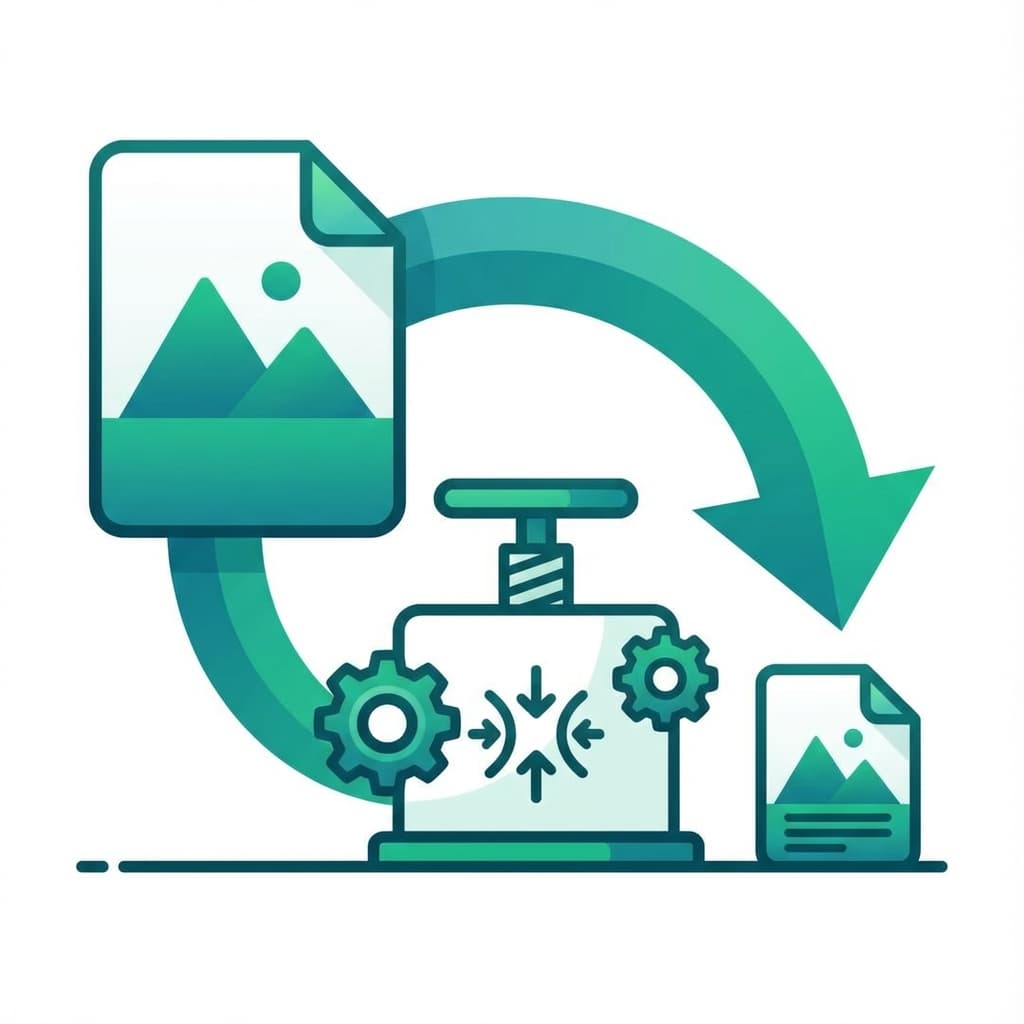
Last week I tried to upload a photo to a form and got the dreaded "File too large" error. The limit was 2MB and my photo was 8MB. Classic.
If you've ever had to quickly shrink an image for email, social media, or a website form, you know the frustration. Most solutions either destroy the image quality or require downloading sketchy software.
Why image size Matters
Large images slow everything down:
- Websites load slower. A page with uncompressed images can take 10+ seconds to load on mobile.
- Emails get blocked. Many email providers limit attachments to 25MB or less.
- Forms reject uploads. Most web forms cap images at 2-5MB.
- Storage fills up. Uncompressed photos eat through cloud storage fast.
The good news? You can usually shrink images by 60-80% without any visible quality loss.
The Difference Between Lossy and Lossless Compression
There are two ways to make images smaller:
Lossy compression removes some image data permanently. The file gets much smaller, but you lose a tiny bit of quality. For most photos, you won't notice the difference.
Lossless compression reorganizes the file without removing data. The file stays identical, just smaller. The size reduction is less dramatic though.
For photographs, lossy is usually fine. For graphics with text or sharp edges, lossless works better.
How Much Can You Actually Compress?
Here's what I typically see:
| Original Size | After Compression | Reduction | |--------------|------------------|-----------| | 5 MB | 1.2 MB | 76% | | 3 MB | 700 KB | 77% | | 8 MB | 1.8 MB | 78% |
Those numbers are for JPEGs at around 80% quality. PNGs compress differently but you can still get solid reductions.
Step-by-Step: Compressing Images Online
Here's my go-to workflow:
1. Open the compressor
Use an online tool that runs in your browser. This way your images stay on your device.
2. Upload your image
Drag and drop or click to select. Most tools handle JPG, PNG, and WebP.
3. Adjust quality if needed
Start at 80% quality. If the file is still too big, drop to 70%. Below 60% you'll start seeing artifacts.
4. Download the result
Compare the before and after. If you can't tell the difference, you're done.
Quick Tips for Even Smaller Files
Resize before compressing. If you're uploading a profile photo, you don't need a 4000x3000 image. Resize to the actual dimensions you need first.
Use the right format.
- JPEG for photographs
- PNG for graphics, logos, text
- WebP for the web (best of both worlds)
Remove metadata. Camera info, GPS data, and other metadata can add hundreds of KB. Most compressors strip this automatically.
When Not to Compress
Don't compress images that:
- Will be printed at high resolution
- Are already heavily compressed
- Have text that needs to stay sharp
- Are master copies you want to keep original
Always keep the original file somewhere safe, then compress a copy.
Try It Now
Need to shrink an image right now? Our [Image Compressor](/tools/image-compressor) runs entirely in your browser. Your images never leave your computer, and there's no signup or watermark. Just drop your image and download the compressed version.