How to Convert Images to PDF: Complete Guide

You have 5 screenshots of a bug report. Or 10 photos of receipts for your expense report. You can't just email 10 separate JPG attachments. That's messy.
You need a single PDF.
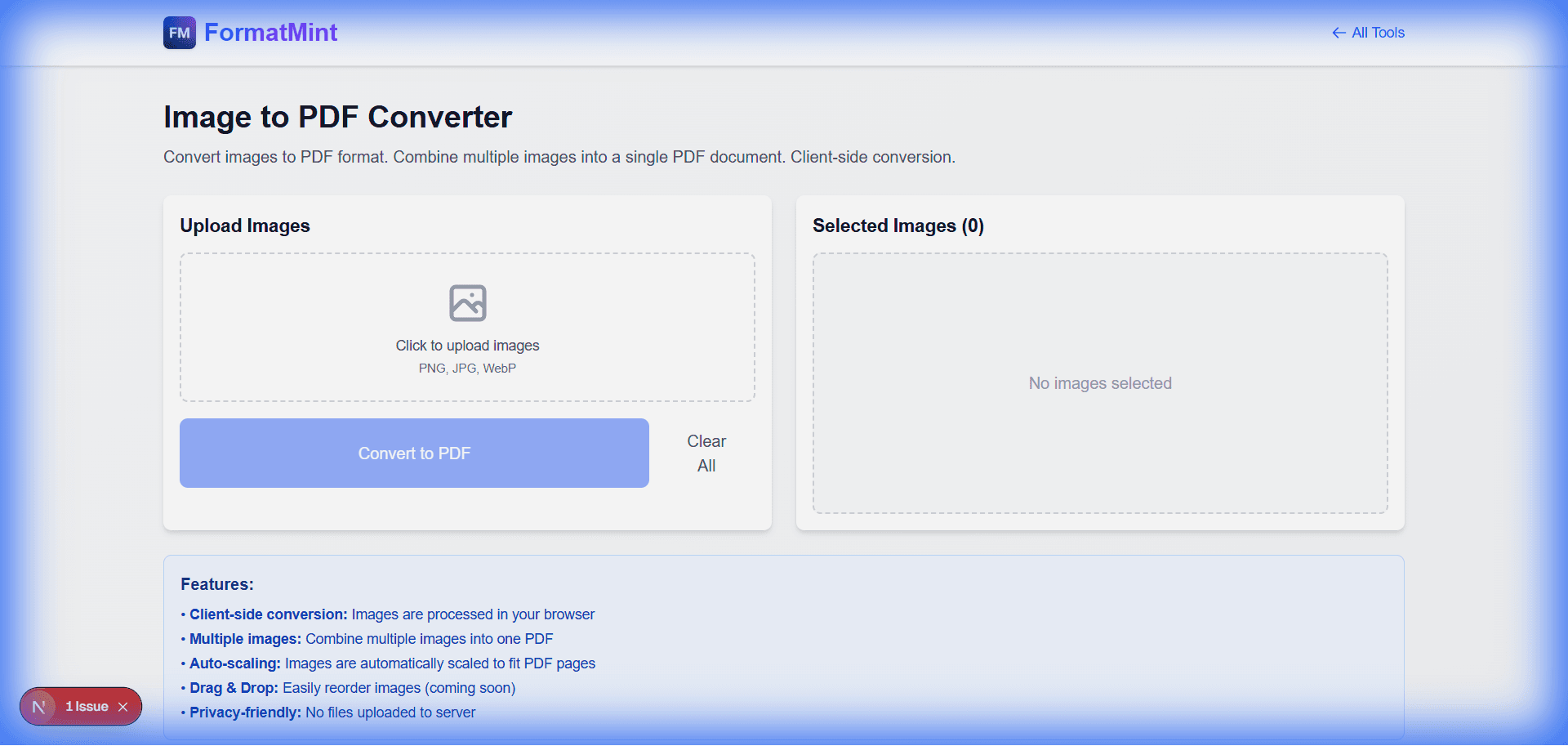
Our [Image to PDF Converter](/tools/image-to-pdf) is the simplest way to stitch those images together into one professional document.
Why This Tool is Different
Most online PDF tools are sketchy. They upload your files to a remote server, process them, and then (hopefully) delete them.
We don't do that.
This tool runs locally in your browser. Your receipts, medical scans, or private screenshots never leave your device. The PDF generation happens right here, using JavaScript.
Real World Use Cases
1. The "Expense Report" Struggle
I use this monthly. I take photos of my receipts on my phone, AirDrop them to my laptop, and then drag them all into this tool. One click later, I have Expenses_Nov.pdf ready to upload.
2. Design Portfolios
If you're a designer sending mockups to a client, a PDF is often better than a folder of PNGs. It ensures the client sees the designs in the correct order and doesn't miss any files.
3. Archiving
Have old scanned photos? Combine them into a digital album. It's much easier to share a single PDF with family than a zip file they don't know how to open.
Tips for a Better PDF
- Order Matters: Drag and drop your images to rearrange them before converting. The first image will be Page 1.
- Consistency: Try to use images of similar orientation (all portrait or all landscape) for the best reading experience.
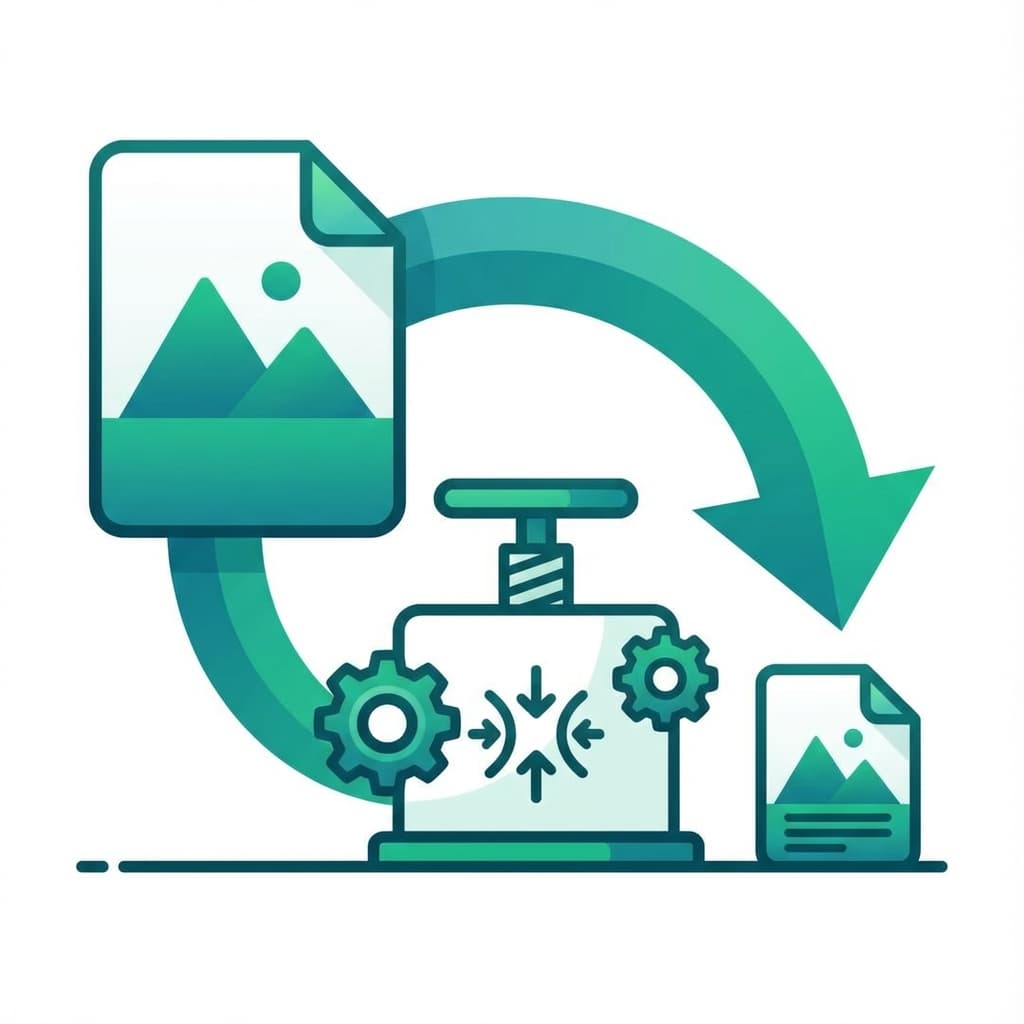
- Compression: If you're combining 20 high-res photos, the PDF will be huge. Consider running them through our [Image Compressor](/tools/image-compressor) first if file size is a concern. (Or Resize them first).
Related Tools
Image to PDF Converter
Convert images to PDF format. Combine multiple images into a single PDF document. Client-side conversion.
Image Compressor
Compress images to reduce file size while maintaining quality. Client-side compression for privacy.
Image Resizer
Resize images to custom dimensions or percentages. Maintain aspect ratio or set custom width and height.